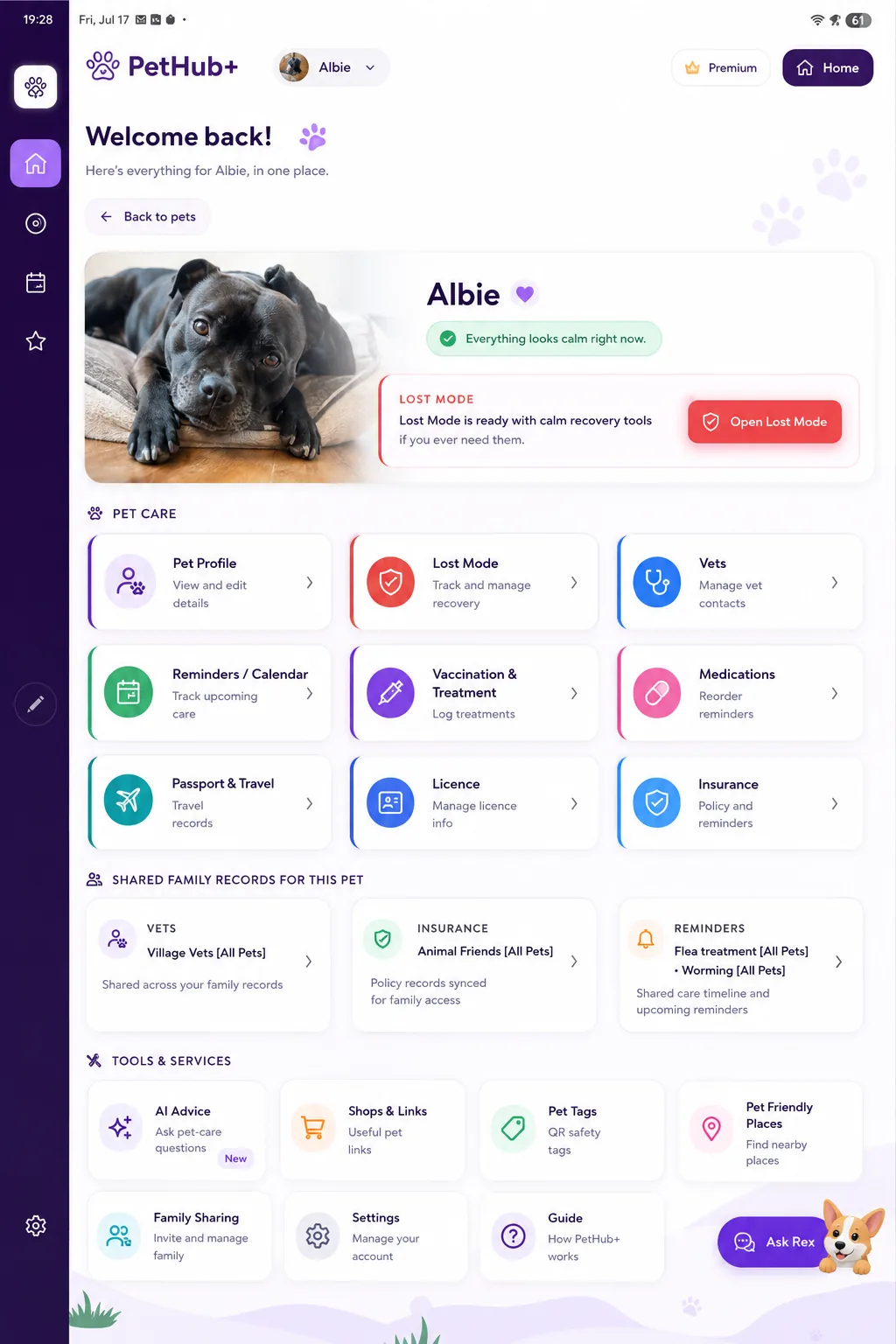


Home Overview
Choose a pet to open their dashboard. Pet care tools are shown first, with extra services below.
Someone has been in contact about your pet
Your account is at risk of deletion
Your PetHub+ account has been inactive for over 3 months. To keep your account, stay logged in or subscribe to Premium. Otherwise, your account and all associated data will be deleted.
Our Terms of Use and Privacy Policy have been updated on 16 May 2026.
You can review the updated documents in Settings → Legal.
Your pets
Select a pet to open their dashboard.
Keep all your pets in one place — profiles, photos, chip numbers and notes.
Instant alerts & QR recovery ready
Tap below to open Pets and add your first pet.
New public sighting reported — open Lost Mode to review.
Reach your vet fast — numbers, email, website and out-of-hours contacts in one tap.
Never miss meds, flea treatments, worming or vet visits — with repeats that suit you.
Keep a full medical story — jabs, meds, worming and flea care in one timeline.
Track ongoing prescriptions. Get a reorder reminder 14 days before your pet runs out.
Keep travel paperwork and key treatment dates together — with expiry reminders before you go.
Track licence expiry and documents — get nudges before renewal dates.
Keep cover details and renewal dates handy — policies and documents when you need them.
Ask pet-care questions and get guided answers — built for real-life “what should I do?” moments.
Quick access to your favourite online vets, pharmacies and pet stores.
Order a PetHub+ QR tag for your pet so Lost Mode works properly and anyone who finds them can scan the code to reach your pet’s page.
Worldwide ordering with country-based routing.
Discover pet-friendly cafés, restaurants and stays near you on the map.
You’re using the free plan
Basic Lost Mode is free. Premium tells you the instant your dog's tag is scanned.
2 pet profiles, 2 vet contacts, 2 licence records, 3 active reminders, 3 treatment records, Lost Mode basic
Unlimited pets, vets, reminders and records. Instant alerts the moment your dog's tag is scanned. Full sighting history and reporter contact details. Insurance, travel passport, AI advice, pet-friendly places, and family sharing.
Manage family sharing, subscriptions and your account in one place.
Learn how each card works and how to use all the features of PetHub+.
Founding Member
Hand-picked from fellow indie developers on SwapMyApp.
Welcome back! 🐾
Here’s everything for your pet, in one place.

Pet dashboard
Pet care
Shared family records for this pet
Tools & services
Guide How it works
Learn about each home screen card, the first-time setup flow for new accounts, and how to use the main features. On larger screens (tablet or desktop), the bottom tabs move to a sidebar on the left — same buttons, same order.
First-time setup
What it is: If you sign in with a new account and have no pets yet, PetHub+ shows a short wizard on the sign-in overlay before the main app appears.
- Welcome — Protection-led intro; tap Get Started or use the small I’ll do this later link to skip straight to Home.
- Add your first pet — Required before Home: pet name and species (plus optional details); saved to your account.
- Contact details — So people can reach you if your pet needs you; optional — Do this later continues without saving.
- Finish protecting your pet — What you’re missing on Basic vs Premium. Tap Start Premium for the same subscription / trial flow used elsewhere, or Continue with Basic (text link) for the free tier.
- You can’t skip adding your first pet during setup. Deferring welcome or contact details doesn’t block pets, calendar, Lost Mode, Pet Tags or Settings later.
- Accounts that already have pets go straight to the dashboard (this wizard is skipped).
Pets Card
What it does: The Pets card is your central hub for managing all your pet profiles.
- Create detailed profiles for each pet with photos, names, and information
- Store important details like date of birth, microchip numbers, and notes
- View upcoming birthdays in a convenient list
- Link pets to vets and insurance policies
- Open Lost Mode for each pet from the pet profile or the Lost Mode home card (a PetHub+ QR tag on the collar makes it easy for finders to scan your pet's page)
- Ask AI questions about specific pets
- Switch pets from the top bar — on a pet's dashboard, tap the pet-name pill in the header to jump straight to another pet, or choose All pets to return to the Home overview
Tap the Pets card to see all your pets. Tap "Add pet" to create a new profile, or tap an existing pet to view and edit their details. The card shows upcoming birthdays so you never miss a celebration!
Lost Mode Card
Home screen: The Lost Mode card shows your status at a glance — whether you still need to add a pet, everything is safe, or a pet is marked missing (with a clear alert). Tap the card to open Lost Mode. Posters, alerts, map, sightings and recovery tools are there to help you act fast.
What it does: Lost Mode helps reunite you with a lost pet. When it is on, you get a public lost page and link you can share. If your pet wears a PetHub+ QR tag, someone who finds them can also scan the tag to open that page.
- Open Lost Mode: From the Lost Mode card on Home, or from a pet in Pets, open Lost Mode for the pet you need.
- Mark your pet as lost: Turn Enable Lost Mode on. This activates the public lost page and sharing tools.
- Enter last seen details: Where and when your pet was last seen — drop a pin on the map or use your current location.
- Add contact information: Enter the name and phone number finders should use (required). You can add an email too.
- Add extra context: Behaviour notes (e.g. "Nervous near traffic") and an optional reward.
- Save and share: Use your public link, printable poster, notifications and in-app sharing tools to reach more people quickly.
- Optional — PetHub+ QR tag: Order from the Pet Tags card so a finder can scan the collar to open your pet's page without you posting the link first.
If someone reports seeing your pet in a different location, you can add additional sightings:
- In Lost Mode, use the map to drop a pin at the new location where your pet was seen
- Tap "Add sighting from map pin" button
- Enter when the pet was seen (or leave blank for "just now")
- Add any notes about the sighting (e.g., "Seen running towards the park")
- The sighting will be saved and appear in the sightings list
- All sightings are visible on the public lost page, helping track your pet's movement
- View public page: See what finders see when they open your shared link or scan your pet's QR tag
- Tag scan alerts: If your pet wears a PetHub+ QR tag, you are notified the moment someone scans it - often the first sign your pet has been found, before the finder has called you. Works whether Lost Mode is on or off. The alert tells you which was used: the collar tag, or your lost page (the poster QR code or a link you shared). Viewing your own public page or poster never counts, and repeat scans of the same pet within a few hours are grouped into one alert. The alert tells you a scan happened and when - it does not include the finder's location. As well as the notification on your phone, the alert appears at the top of your Home screen and stays there until you tap Clear, so swiping the notification away never loses it
- Someone has your pet: If a person scans the collar tag but can't reach you - no answer, no credit, or they'd rather not phone - they can leave their own number and, if they choose, their location. You get an alert saying "Someone has <pet>" with their number so you can call them. Your contact details are always shown on the tag page first, so most finders will simply ring you; this is the fallback for when that doesn't work. The alert sits at the top of your Home screen with a Call button and, if they shared it, See where they are, and it stays until you tap Clear. Sharing a location is entirely the finder's choice: if they do not tick the box, no location is recorded. Their details are only ever visible to you and your family members, never publicly, and are deleted once you mark the contact resolved or after 30 days
- Generate Lost Poster: Create a printable poster with your pet's photo, details, and QR code
- Copy Link: Share the public link on social media, in lost pet groups, or via email
- Notify Family: Send the lost page link to family members and friends
- Track Sightings: View all reported sightings on the map to see your pet's movement pattern
- Enable Lost Mode immediately when your pet goes missing - every minute counts
- Keep your contact information up to date so finders can reach you
- Add sightings as soon as you receive reports to track your pet's location
- Share the QR code and public link widely on social media and local lost pet groups
- When your pet is found, toggle Lost Mode OFF to deactivate the public page
- The QR tag works even when Lost Mode is off - it will show your pet's profile page
Vets Card
What it does: Store and quickly access all your veterinary contact information.
- Save your primary vet's contact details
- Store phone numbers, email addresses, and websites
- Keep emergency contact numbers handy
- Quick action buttons on the home screen for calling or emailing
- Link vets to specific pets for easy reference
Tap the Vets card to add or edit your vet information. Once saved, you'll see quick action buttons on the home screen that let you call or email your vet with a single tap. Perfect for emergencies!
Calendar Card
What it does: Never miss important pet care tasks with smart reminders and a visual calendar.
- Create reminders for flea treatments, worming, medications, and vet visits
- Set up repeating reminders (daily, weekly, monthly, etc.)
- View today's care items at a glance on the home screen
- At-a-glance stats and "Due today" banner — the top of the home screen shows how many care items are due today and in the next 7 days; when something is due, a banner highlights the most urgent item and jumps straight to the Calendar
- See a weekly overview of upcoming tasks
- Full calendar view with month/week/day options
- Get notifications before tasks are due
- Apply reminders to multiple pets at once
Tap the Calendar card to see all your reminders. Create a new reminder by selecting the pet, type of care (flea treatment, worming, medication, vet visit), date, and whether it repeats. The home screen shows today's tasks and this week's overview so you always know what's coming up.
Vaccination & Treatment Card
What it does: Keeps a full medical story for each pet — vaccinations, medications, worming and flea treatments in one timeline, separate from the day-to-day Calendar reminders.
- Record jabs, boosters and treatments per pet with dates and notes
- Track ongoing meds and parasite prevention alongside vet-recommended schedules
- See history at a glance when you are at the vet or travelling
Tap the Vaccination & Treatment card, choose a pet, then add or review entries. Use the Calendar card for repeating reminders; use this card for the treatment record and history.
Passport & Travel Card
What it does: Plans a specific trip and tells you exactly what your pet needs to travel — with the right deadlines, reminders, and a ready-to-use pack for your vet. Stores your passport and travel documents in one place too.
- Trip planner: choose where you're travelling from and to, plus your travel date. For EU trips, pick the specific EU country you'll arrive in first — your vet needs it for the certificate
- Your exact requirements: e.g. the UK, Jersey, Guernsey and the Isle of Man travelling to the EU all need an Animal Health Certificate (AHC), rabies, microchip and tapeworm — each with its own deadline counted back from your travel date. The Channel Islands and Isle of Man are shown as their own region (with their own government link), even though they follow the same UK APHA process
- Automatic reminders for every travel deadline, delivered as notifications on your phone
- Vet pack: generate a pre-filled summary to download or email to your vet for the AHC appointment (it's preparation info, not the certificate itself)
- Worldwide guidance: for other routes (EU Pet Passport, USA, Australia, New Zealand and more) with links to the official source
- Keep passport and travel documents in one place, with expiry reminders
Tap Passport & Travel, select your pet, then set Travelling from, Travelling to and your Travel date. If you're heading to the EU, also pick which EU country you'll arrive in first. Follow the deadline checklist and tap Generate vet pack to prepare what your vet needs. Always confirm requirements with your vet and the official government guidance before you travel.
Licence Card
What it does: Tracks licence expiry and related documents so you get nudges before renewal dates.
- Store licence numbers and renewal deadlines per pet where applicable
- Attach or reference supporting documents
- Stay ahead of local registration or licence requirements
Open the Licence card, pick a pet, and enter licence details and expiry. Update when you renew so reminders stay accurate.
Insurance Card
What it does: Keep track of all your pet insurance policies and important documents.
- Track multiple insurance policies for different pets
- Set renewal dates and get reminders
- Attach important documents like policy certificates
- Store policy numbers and provider information
- Link policies to specific pets
Tap the Insurance card to view all your policies. Add a new policy by entering the details and renewal date. You can attach documents by taking photos or uploading files. The app will remind you when renewals are approaching.
AI Advice Card
What it does: Get instant answers to your pet care questions using AI assistance.
- Ask general pet care questions
- Get advice about specific pets (from the Pets section)
- Receive instant responses to common queries
- Cloud AI integration coming soon for enhanced features
Tap the AI Advice card to open the chat interface. Type your question and get instant answers. You can also ask questions about specific pets from their profile page for personalized advice.
- 5 questions per day (resets at midnight)
- 10 seconds between questions
- Pet-related questions only
💬 Need unlimited questions? Try ChatGPT for unlimited AI assistance.
Shops & Links Card
What it does: Quick access to your favourite online pet stores, pharmacies, and veterinary services.
- Save links to your preferred online vets
- Bookmark pet pharmacies and stores
- Quick access to frequently used websites
- Organize your pet-related bookmarks in one place
Tap the Shops & Links card to view your saved bookmarks. Add new links by entering the name and URL of your favourite pet stores, online vets, or pharmacies. Tap any link to open it in your browser.
Pet Tags Card
What it does: Order PetHub+ QR tags linked to your pets so a finder can scan the tag on the collar to open your pet's public page. Tags complement Lost Mode and the rest of PetHub+; you can still turn on Lost Mode and share your public link from the app without a physical tag.
- Order QR tags matched to pets in your account
- Physical scan opens your pet's page for finders
- Works together with Lost Mode and your contact details
- Worldwide ordering with country-based routing
Tap the Pet Tags card, choose a pet, enter delivery details, and complete checkout. Attach the tag to your pet's collar so finders can scan it. You can use Lost Mode and share your link from the app at any time — the tag is an extra way for people to reach you in an emergency.
Engraving limits: line 1 (your surname) holds up to 16 characters. Line 2 is your house number/name plus your postcode, up to 15 and 8 characters, which is 24 on the tag once they are joined. The order form counts as you type. You can also add a mobile number if you would like Royal Mail to text you delivery updates as well as emailing them.
Pet-friendly Places Card
What it does: Discover pet-friendly locations near you including cafes, restaurants, and hotels.
- Interactive map showing pet-friendly venues
- Find coffee shops, restaurants, and hotels that welcome pets
- View locations based on your current location
- Get directions to pet-friendly places
Tap the Pet-friendly Places card to open an interactive map. The app will show pet-friendly locations near you. You can tap on markers to see more details about each venue, and get directions if needed. Perfect for planning outings with your furry friends!
Give your pet full protection
What it does: On the home screen, Basic accounts may see a Give your pet full protection card. It matches your other home tiles and frames Premium around safety, reassurance, and being ready when something goes wrong.
- Reminders, treatments, insurance and travel records
- Licence and vet information with higher save limits
- Lost Mode, sightings, posters and QR tag support alongside the rest of the app
Tap Protect your pet fully to start your free trial. On mobile, Apple's App Store or Google Play handles billing. On the web (pethubplus.com), you'll be sent to a PayPal-secured checkout. Use Why upgrade? for plan detail. You can review status under Settings → Subscription, or see Cancelling your subscription below.
Cancelling your subscription
Cancel through the same place you subscribed — PetHub+ can't cancel for you because Apple, Google, and PayPal each hold the billing relationship directly with you.
Settings → tap your name at the top → Subscriptions → tap PetHub+ → Cancel Subscription. (Or open the App Store app → tap your profile icon → Subscriptions.)
Play Store → tap your profile icon → Payments & subscriptions → Subscriptions → PetHub+ → Cancel subscription.
Log in to paypal.com → Settings (cog) → Payments → Manage automatic payments → select PetHub+ Premium → Cancel.
Your access stays active until the end of the current billing period after you cancel. After that, your account reverts to Basic — your data is kept, but Premium features lock.
Settings Card
What it does: Manage your account, family sharing, subscription, and settings all in one place.
- Family Sharing: Share pets, vets, insurance, and calendar with family members
- Subscription: View and manage your PetHub+ subscription status
- My Details: Change your password and review account information
- Get family invite codes to add members
- Manage who has access to your pet information
- More from our team: the "Pets on board?" card links to BoatMatey, our boat maintenance app
Tap the Settings card to access account management. From here you can set up family sharing by generating an invite code, check your subscription status, and update your account details. Family sharing lets you collaborate with family members on pet care - everyone stays in sync!
Guide Card
What it does: Opens this screen — a walkthrough of every home screen card so you always know where to tap next.
Tap the Guide card on the home screen any time you want a refresher. Scroll through the sections above (including first-time setup if you are new to the app); the Frequently Asked Questions block below answers common account and feature questions.
Frequently Asked Questions
Q: How do I share my pets with family members?
A: Go to the Settings card, then tap "Family sharing". You'll see your family invite code that you can share with family members. They can use this code to join your family and access all your pets, vets, insurance, and calendar information.
Q: Can I use Lost Mode without ordering a QR tag?
A: Yes. You can turn on Lost Mode, use the map, sightings, poster and sharing tools, and send people your public lost page link from the app. A PetHub+ QR tag is optional but recommended: it lets someone who finds your pet scan the collar to open that same page without you having to share the link first. Order tags from the Pet Tags card when you are ready.
Q: What does PetHub+ Premium include?
A: Premium is the paid tier for the full PetHub+ experience — higher limits and save options for reminders, treatment history, insurance policies, passport and travel, licence records, vet contacts, document uploads, family sharing, and more (see the Give your pet full protection home card and the in-app upgrade screens for current benefits). Lost Mode (map, sightings, posters, alerts and sharing) is a core part of the app for every account and is not sold as a Premium add-on.
Q: How do I set up repeating reminders for flea treatment?
A: Go to the Calendar card, create a new reminder, select "Flea treatment" as the type, choose the date, and then select a repeat option (e.g., "Every 4 weeks" or "Monthly"). You can also set a reminder offset to get notified before the due date.
Q: What happens to my data if I delete my account?
A: Deleting your account permanently removes all your pets, vets, insurance policies, reminders, and other data from PetHub+. This action cannot be undone. Important: deleting your PetHub+ account does not cancel your subscription — Apple, Google, and PayPal will keep billing the payment method you used. Cancel your subscription first (see Cancelling your subscription above), then delete the account. Make sure to export any important information beforehand.
Q: Can I use PetHub+ offline?
A: Yes! PetHub+ stores your data locally on your device, so you can view and edit your pets, vets, insurance, and calendar even without an internet connection. Your data will sync to the cloud when you're back online.
Q: How do I change my subscription or cancel it?
A: Go to Settings → Subscription to view your status. To cancel, you need to do it in the same place you subscribed — App Store, Google Play, or PayPal — because each platform handles billing directly. See the Cancelling your subscription section above for step-by-step instructions for all three.
Q: Can I attach multiple documents to an insurance policy?
A: Yes! You can attach up to 3 documents per insurance policy. Each document must be 3MB or smaller. Supported formats include PDFs and images.
Q: What should I do if my pet goes missing?
A: Immediately go to the Pets card, select your pet, and tap "Lost Mode". Enable Lost Mode, enter where and when your pet was last seen, add your contact information, and save. Then share the QR code and public link on social media and with local lost pet groups. Add any sightings you receive to track your pet's movement.
Q: How do I add a vet to multiple pets?
A: When editing a pet's profile in the Pets section, you can select a vet from the dropdown. Each pet can have their own vet assigned. If you want to use the same vet for multiple pets, simply select that vet when editing each pet's profile.
Q: Can I export my pet data?
A: Currently, your data is stored locally and synced to the cloud. For backup purposes, your data is automatically synced to your account. If you need to export specific information, you can take screenshots or copy the details manually.
Q: Why aren't my reminders showing notifications?
A: Make sure you've granted notification permissions to the PetHub+ app in your device settings. Also, check that your reminders have a date/time set and that the reminder offset is configured if you want to be notified before the due date.
Q: How do I update my contact information for Lost Mode?
A: Go to Lost Mode for the specific pet, and you can update the contact name, phone number, and email. You can also check "Save these contact details as the default for this family" to use the same information for future Lost Mode activations.
Settings Account & family
Everything to do with your account lives here – family sharing, subscription, your password, deleting your account, and legal information.
App version:
Check your PetHub+ subscription and how you currently have access.
Change your password and review basic account details.
Get help, contact us, or read our Privacy Policy and Terms of Use.
Open SupportPrivacy Policy, Terms of Use, and (on iOS) Apple Standard EULA.
Sign out of this device. Your data stays in the cloud; sign in again to continue.
Enjoying the app? Leave us a review — it really helps.
Rate usFrom the same team: BoatMatey keeps your boat’s maintenance, service history and safety kit in one place.
Find out morePermanently delete your PetHub+ account and all saved pets, vets, insurance, reminders and family links from this device and the cloud.
Pets 0 pets
Each pet gets their own profile with photo, DOB, chip number, notes, and links to vet and insurance.
Pet profile View & edit
Lost Mode will open in a new tab. From there you can set last seen details, contact info and share the QR code or link.
Photo and name update as you fill in the form.
Pet Tags
Order a PetHub+ QR tag and we’ll direct you to the right ordering option for your country.
Pet Tags Zazzle
Personalise and order your tag for delivery in your country. Each tag is personalised with a unique QR code and pet’s name on the back.
Generate a QR code from this URL (e.g. via an online QR generator) and upload it as the personalised image on Zazzle, or use Zazzle’s image personalisation to point to this URL if supported.
When ordering on Zazzle, enter the pet’s name and your QR image in the product’s personalisation fields so each tag is unique.
After you complete checkout on Zazzle:
Pet Tags Order
Order a PetHub+ QR tag for your pet. The tag links to your pet’s Lost & Found page, so anyone can scan it and contact you if they’re found.
It’s also required if you want to enable Lost Mode in the app.
Delivery: United Kingdom, Channel Islands and Isle of Man only (for now).
Confirm purchase
You are about to purchase Pet Tag Pack – 1 Tag.
Vet records Practices
Keep your practice and out-of-hours numbers in one calm place — easy to scan when it matters.
No practices saved yet
Tap Add vet to store your usual vet and any emergency line.
Vet details Edit
Phones are shown first on your list so you can reach someone quickly.
Pet Insurance Policies & docs
Manage your pet’s cover and renewal details
Manage insurance policies and attach PDF copies so everything is easy to find. Policies are stored locally on this device.
No policies yet.
Tap Add policy to create one.
Pet Insurance View & edit
Manage your pet’s cover and renewal details
Vaccination & Treatment History 0 treatments
Vaccination & treatment
Record vaccinations, medications, worming, flea treatments and vet visits.
Treatment details
Medications 0 medications
Track each ongoing prescription with dose, frequency and quantity. We calculate when it'll run out and notify the whole family before then.
Pet medication
Track ongoing prescriptions. We'll notify your whole family before the supply runs out.
Passport & Travel Documents & reminders
Keep track of pet passports, rabies vaccinations, tapeworm treatments, and related documents. Automatic reminders help you stay on top of expiry dates.
Passport & travel
Store passport details, vaccination dates, and travel documents.
Licence Documents & reminders
Keep track of pet licences, expiry dates, and related documents. Automatic reminders help you renew on time.
Pet licence
Store licence number, issuing authority, and expiry date.
Pet care planner
Calendar & Reminders
Track flea treatment, worming, vaccinations, medication, vet visits, licence renewals, insurance renewals, and travel tasks.
Calendar overview
Tap a date to prefill a new reminder and keep your care plan on schedule.
Selected day & upcoming care items
Add care items and choose which pet they belong to. Set reminders so nothing gets missed.
Upcoming reminders in current calendar range
AI Advice
Powered by AIAsk pet-related questions about health, behaviour, food, and general care guidance.
Before you use AI Advice
To provide answers, we send your messages to a third-party AI provider. Please read and agree below.
- What we send: The questions and messages you type, and the conversation history needed to generate a reply.
- Who receives it: OpenAI (the provider of the AI model) via our secure servers. We do not store your conversations on our servers after the response is generated.
- Why: Solely to generate AI responses to your pet-care questions.
We will only send your data after you agree. You can stop using AI Advice at any time. For full details, see our Privacy Policy.
Shops & links Quick access
Save links to your favourite online vets, pharmacies and pet shops. Note: Shop links are stored locally on this device and are not backed up to the cloud. Any websites you add to your vet or insurance records can also appear here automatically.
To create a new shop card, tap “Add shop”, give it a short name and paste the full website URL. You can edit or delete shops at any time.
Pet-friendly places Cafés, vets & more
Use the map below to find dog-friendly cafés, vets, pet shops, walks, pubs and more near your location.
Tip: Tap markers for more information or open full-screen for directions.
Data for nearby places is provided by Google Places. Pet-friendliness can’t be guaranteed – please check details directly with the venue before you visit.
Subscription
This shows how this account currently has access to PetHub+.
If you use PetHub+ via a shared family, you'll see that here.
If you pay for PetHub+ yourself, you can update billing details or cancel using this button.
Restore only works for the Apple/Google account that pays. Family members get access via the family owner.
My Details Security
Update your PetHub+ password and basic contact details.
For security, confirm your current password before changing your email.
Used on your Lost & Found page so people can contact you if your pet is found.
Family sharing Cloud sync
Family sharing lets your household see the same pets, vets, insurance and care reminders across multiple devices. Each person has their own login, but you all join the same family.
- Pets: details, photos, notes.
- Vets: practice details & quick actions.
- Insurance policies: insurers, policy numbers & links.
- Calendar: reminders for meds, flea & worming, vet visits and more.
- Shops & links list.
- AI advice conversation history.
- App preferences on this phone/tablet.
Sign in first to see your family code.
Ask the pet owner for their family code
Manage who’s in your family.
Removing someone will kick them out of your family. On their device they’ll be signed out and asked to sign in again.
Let's get started
Let's get started by creating your first pet profile.
Add contact details for Lost Mode
So anyone who finds your pet can contact you instantly
Which pet?
Choose a pet to open Lost Mode.